7-Day Digital Detox Plan to Reduce Screen Time
A realistic 7-day digital detox plan to reduce screen time without quitting cold turkey — one small step per day, plus where an app blocker fits in.

A digital detox does not have to mean a week in a cabin with a flip phone. Cold-turkey detoxes fail for the same reason crash diets do: they treat the phone as the enemy instead of the habits around it, and the moment the week ends, everything snaps back.
This plan takes the opposite approach. Seven days, one small change per day, each one building on the last. By day seven you have a phone that is quieter, less sticky, and blocked during the hours that matter — without deleting a single account.
You will need about ten minutes a day and, from day four onward, an app blocker. We will use NoSocial in the examples, but the structure works with any blocker built on Apple's Screen Time API.
Day 1: Audit — find out where the time actually goes
Before changing anything, look at the data. Open Settings → Screen Time and review the past week: total time, most-used apps, and pickups. Do not judge, just observe. Most people find that two or three apps account for the bulk of their screen time, and that pickups cluster at predictable moments — waking up, commuting, lying in bed.
Write down your top three time sinks and the two times of day you reach for the phone most. That list is your entire target. Everything else this week aims at exactly those apps and those hours.
Day 2: Notification purge
Every notification is an invitation to pick up the phone, and most of them are marketing dressed up as information. Go to Settings → Notifications and work down the list with one question: does this need my attention the moment it happens?
- Keep: calls, messages from actual humans, calendar, anything safety-related.
- Silence or disable: social apps, news, shopping, games, and anything that says "You have a new follower."
Notifications from your day-1 target apps go off completely. If an app matters, you will open it on your own schedule — that is the whole point.
Day 3: Make the phone boring — grayscale and a clean home screen
Color is part of what makes feeds appetizing. Turn on grayscale via Settings → Accessibility → Display & Text Size → Color Filters, and set up the Accessibility Shortcut so a triple-click of the side button toggles it. Use grayscale during your vulnerable hours from day 1.
While you are at it, move your target apps off the first home screen — into a folder on the last page, or remove them from the home screen entirely so they are only reachable through search. You are not blocking anything yet; you are just making the automatic reach a little less automatic.
Day 4: Set up blocking windows
Now the structural piece. Willpower is a terrible tool for moment-to-moment decisions, but it is great for one-time decisions. Today you make the one-time decision.
In NoSocial, pick the target apps from day 1 and create scheduled focus windows around the vulnerable hours you identified — typically a work or study block during the day and a sleep block at night. Blocking turns on automatically when the window starts, so the 11 p.m. version of you never has to argue with the feed. Start with modest windows you are confident you can keep; you can widen them next week.
Day 5: Phone-free morning
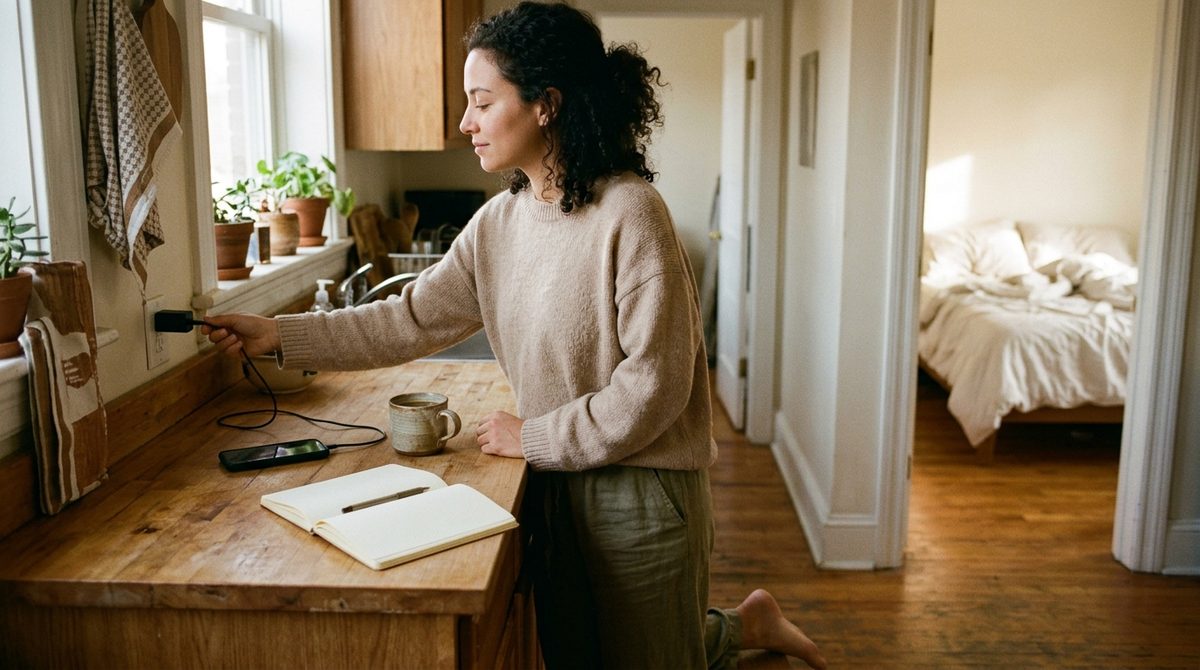
The first minutes after waking set the tone for the day, and a feed is the worst possible input. Today's rule: no phone for the first 30 minutes after waking. Charge it outside arm's reach, use a separate alarm if you need one, and extend last night's sleep-blocking window into the morning so the usual suspects are unavailable even if you do pick the phone up.
Day 6: Phone-free evening wind-down
Same move, other end of the day: the last 45–60 minutes before bed are phone-free. The sleep window from day 4 does the enforcement; your job is just to decide what fills the gap — a book, stretching, tomorrow's to-do list, an actual conversation.
Day 7: Replacement habits and review
An urge to scroll does not disappear when the app is blocked; it needs somewhere to go. Pick one tiny replacement for each vulnerable hour: a walk after lunch instead of the lunchtime scroll, a paper book on the nightstand instead of the feed. Keep replacements small enough that they are easier than unlocking the phone.
Then review the week. Check your Screen Time numbers against day 1, and check the time-reclaimed count and streak in NoSocial. The streak is deliberately gentle — miss a day and you simply start again, no shaming. Progress here is a trend, not a perfect record.
After the seven days
Keep the blocking windows and the phone-free bookends; drop grayscale if it stops feeling necessary. If one app keeps slipping through, give it its own tighter schedule. And if doomscrolling specifically is your weak spot, our guide on how to stop doomscrolling goes deeper on that pattern.
FAQ
Do I need to delete my social media accounts for a digital detox?
No — this plan changes when and how you access the apps rather than whether the accounts exist, which is exactly why it tends to stick: there is no dramatic quitting moment to reverse, just quieter defaults that survive a busy week.
What is a realistic screen time goal?
There is no universal healthy number, so aim for direction instead: reclaim the hours that conflict with sleep, work, or people you care about, and let your own day-1 audit — not someone else's average — define what "less" means.
What if I break the plan halfway through the week?
Just resume on the next day's step rather than restarting from day 1; the plan is cumulative, so a missed day costs you one habit's head start, not the whole detox, and a gentle restart beats an ambitious abandonment every time.
Block distracting apps and take back your focus.
NoSocial — NoSocial blocks the apps that hijack your attention, on your own schedule — so your time goes where you actually want it.
Download NoSocialfree on the App StoreKeep reading

How to Block Apps at Certain Times on iPhone
How to block apps at certain times on iPhone with Downtime or a scheduled app blocker, plus three ready-made weekly schedules for work, study and family.

How to Block Instagram on iPhone (App and Safari)
How to block Instagram on iPhone with Screen Time or a scheduled app blocker, plus how to block instagram.com in Safari so the browser isn't a back door.
How to Stop Using Your Phone in the Morning
How to stop using your phone in the morning: move it out of the bedroom, block tempting apps until a set time, and plan a first hour you actually want.