How to Reduce Screen Time on iPhone — What Actually Works
Skip the willpower lectures. Here's what actually reduces iPhone screen time: which built-in tools help, which ones fail, and how scheduling beats trying.
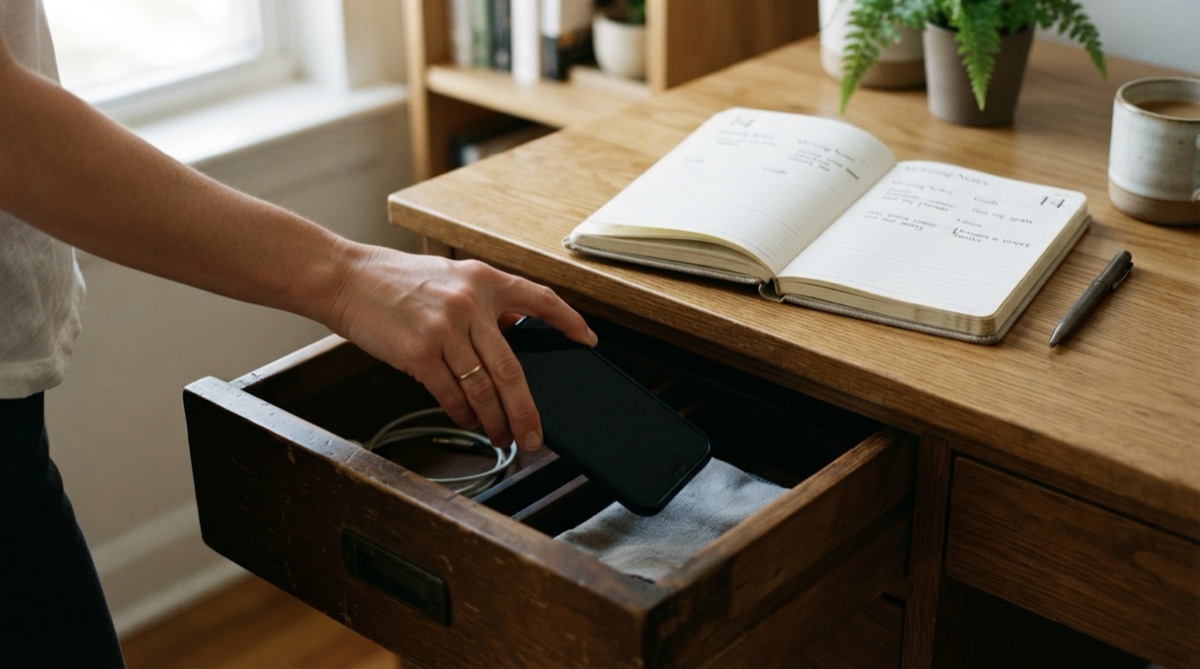
The average iPhone user picks up their phone 80 to 100 times a day. Most of those pickups are not intentional — they are reflex. You reached for the phone before you consciously decided to, opened an app by habit, and looked up ten minutes later wondering where the time went. Reducing screen time is not about willpower; it is about changing the defaults so the reflexes have nowhere useful to go.
Here is what actually moves the needle, without requiring you to become a different person.
Start With the Data, Not the Rules
Before you change anything, open Settings → Screen Time and look at the weekly report. Most people are surprised — not because the total is high (they suspected that) but because of which apps eat the time. Usually two or three apps account for 60 to 80 percent of the total. That list is your only target. Everything else is noise.
Write down the specific apps. Write down the times of day the pickups cluster. Those hours are your vulnerable windows, and any reduction strategy needs to address exactly them — not a general "use my phone less" rule, which is too vague to act on.
The Ignore Limit Problem
Apple's built-in App Limits are the obvious first move — set a 30-minute budget on Social Networking and tap Add. It works for about three days. Then the "Ignore Limit for Today" button becomes automatic. You tap it without thinking, the same way you reached for the phone without thinking.
This is not a character flaw. Apple designed the limit screen with an easy exit on purpose — they have to, because the same feature manages kids' devices and parents need override access. The problem is that adults manage themselves with it, and adults hold the keys. One tap to bypass is not a meaningful obstacle.
Scheduling Works Better Than Budgets
The difference between a daily budget and a scheduled block is the moment of decision. A budget asks you to stop when you hit a number — at the exact moment you are most engaged with the app and least likely to choose to stop. A schedule makes the decision once, at a calm moment, and enforces it automatically.
With NoSocial, you pick the specific apps that eat your time and create named focus windows — a work block from 9 a.m. to noon, a sleep block from 10 p.m. to 7 a.m. The blocking turns on automatically. The 11 p.m. version of you, already in bed, never has to decide anything — the decision was made at noon when your judgment was working.
This is also how streaks help: NoSocial shows you the time reclaimed each day, which makes reduction feel like progress rather than deprivation. The streak is deliberately gentle — a missed day does not erase it.
The Five Changes That Cost Nothing
These adjustments take under ten minutes and do not require any app:
- Move the target apps off the first home screen. They should require search to open, not a muscle-memory tap.
- Turn off all notifications from social and feed apps. A notification is an invitation; accept fewer invitations.
- Charge the phone outside the bedroom. The morning pickup and the pre-sleep scroll are the two highest-pickups moments. Distance solves both.
- Enable grayscale for your vulnerable hours. Settings → Accessibility → Display & Text Size → Color Filters. Feeds are engineered to be visually appetizing; gray feeds are notably less so.
- Log out of the worst apps after each session. Requiring a password turns a reflex into a decision.
Stack these together rather than choosing one. Logged out, icon buried, notifications off, and blocked after 10 p.m. is a substantially different phone from the one you have now. Our 7-day digital detox plan sequences all of this across a week if you want a structured on-ramp.
What Does Not Work (And Why)
Deleting apps cold turkey: the vast majority of people reinstall within a week, often bingeing on reinstall. The habit rebounds harder. Limits without enforcement: any limit you can bypass with one tap is not a limit. General "use my phone less" goals: too vague to change behavior. The brain needs a specific trigger ("work hours start") and a specific action ("social apps are blocked") to form a new habit.
FAQ
How long does it take to reduce screen time?
Most people see a meaningful drop in the first week when they combine scheduled blocking with the five free changes above. The bigger shift — where reaching for the phone stops feeling automatic — happens around three to four weeks in, which is roughly how long it takes for a default behavior to weaken.
Is Screen Time accurate on iPhone?
Mostly, but it counts time the screen is on regardless of what you are doing — so a long Maps session counts the same as an hour of social media. The pickup count (how many times you unlocked the phone) is often the more useful number to watch, since it reflects reflex behavior rather than intentional use.
Can I reduce screen time without deleting my accounts?
Yes — this is the most sustainable approach. Deleting accounts trades one dramatic gesture for a likely rebound. Scheduled blocking during vulnerable hours reduces the time you spend while leaving the apps available when you actually choose to use them.
Block distracting apps and take back your focus.
NoSocial — NoSocial blocks the apps that hijack your attention, on your own schedule — so your time goes where you actually want it.
Download NoSocialfree on the App StoreKeep reading

How to Block Apps at Certain Times on iPhone
How to block apps at certain times on iPhone with Downtime or a scheduled app blocker, plus three ready-made weekly schedules for work, study and family.

How to Block Instagram on iPhone (App and Safari)
How to block Instagram on iPhone with Screen Time or a scheduled app blocker, plus how to block instagram.com in Safari so the browser isn't a back door.
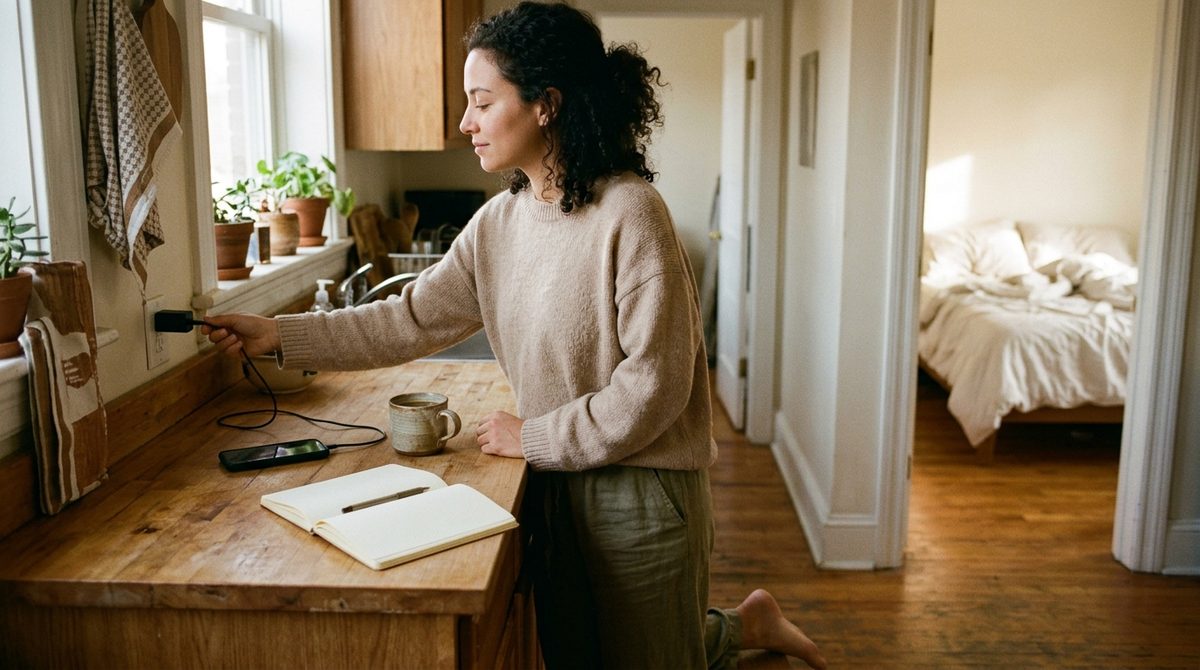
How to Stop Using Your Phone in the Morning
How to stop using your phone in the morning: move it out of the bedroom, block tempting apps until a set time, and plan a first hour you actually want.